
Qubi Quickstart

Welcome to Qubi. This quickstart takes you from opening the box to measuring your first entangled pair, and shows you where everything else lives.

Sohum Thakkar
Sohum Thakkar · CEO, Qolour
August 7, 2026
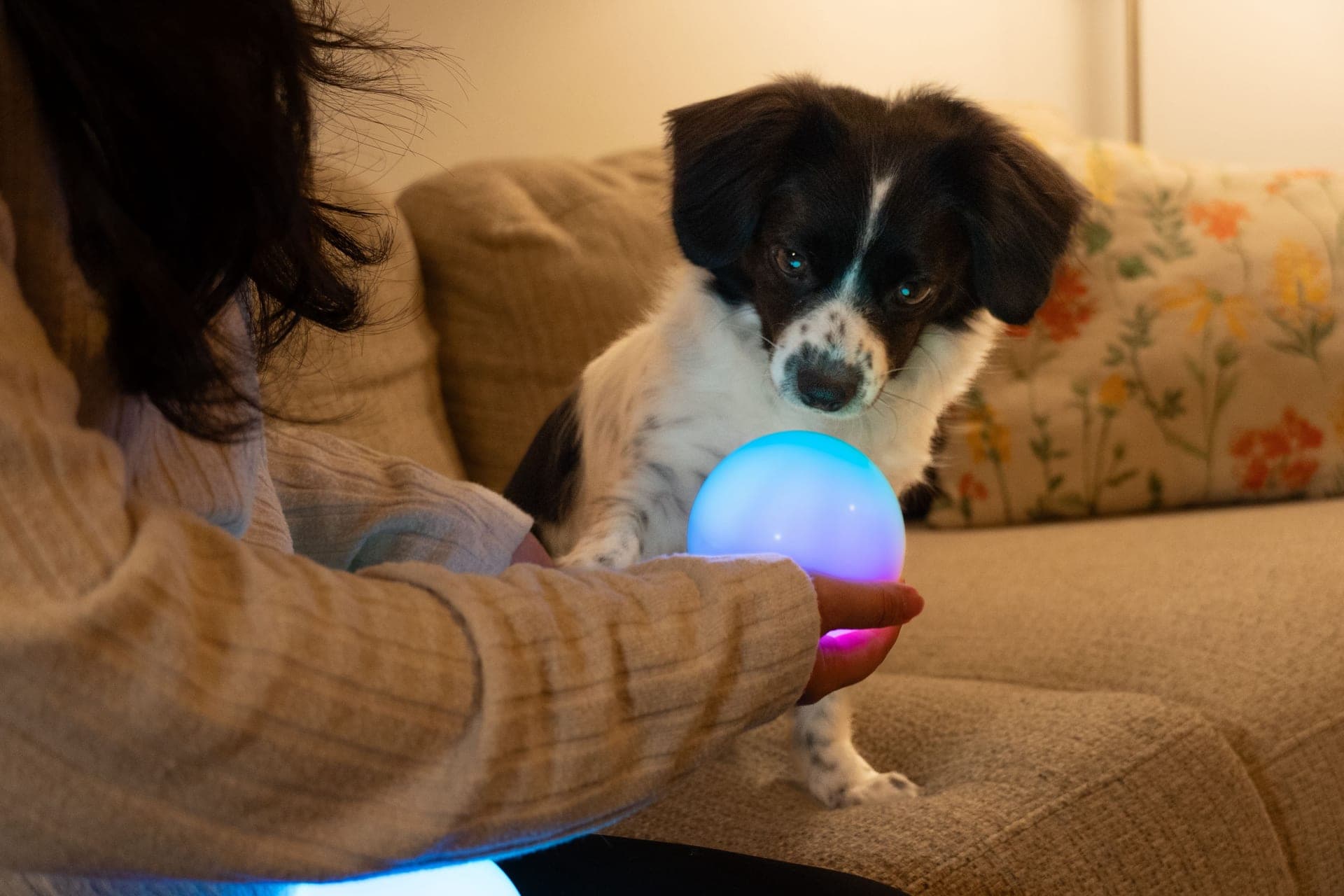
A Qubi being held in someone's hand

1. Out of the box

Take both Qubis out of the box and keep them close together, within about a meter. Press and hold the button on each for 3 seconds to turn them on. A startup animation confirms each one is awake.

Now set them down and leave them alone for up to 15 seconds. When rainbow colors appear on both spheres, the pair has automatically connected and entangled itself into the singlet state. Those colorful patterns are your first quantum state.

That's the whole setup: no app, no pairing screens. The two are now in a permanent session, so they can talk to each other whenever both are on. If nothing happens, they may need a quick charge (see the charging section below), then try again.

2. Orient yourself

Unless otherwise stated, we assume you're holding the Qubi with the button facing up and the charger port facing back. So “upwards” means “in the direction of the button.”

up(button direction)back(port direction)button

If you're familiar with quantum, here's how it maps to the Bloch sphere:

+z = |0⟩button up−z = |1⟩+xfront of device−xport direction
How the Qubi's physical orientation maps to the Bloch sphere. Button points along +z = |0⟩, port along −x.

New to the Bloch sphere? Start with What is the Bloch sphere? and come back here.

3. Jab to measure

Those rainbow colors mean your Qubis are still entangled. To leave the singlet state, make a measurement: jab both Qubis up and down. Each sphere collapses to a definite outcome.

Look at where they land. The two will always face opposite directions. That's the entanglement at work: measuring one instantly correlates with the other. The moment either Qubi is measured, the entanglement ends.

4. Bump to entangle

Want the singlet back? With both Qubis on, hold one in each hand and gently bump them together. A flash on both spheres confirms they're entangled again.

Contact force matters. After a couple of tries you'll find the right strength.

Calibrating the bump

  • Too gentle: nothing happens. Try harder.
  • Just right: both spheres flash. You're entangled.
  • Too hard: they vibrate (that's a measurement, not a bump). Try lighter.

5. Toggle the visualizer

Qubi comes with multiple visualizers for displaying quantum states, one active at a time on each sphere. Double-tap the button to switch. Do it quickly, or it won't register.

With the rainbow visualizer on an entangled pair, the color patterns on the two spheres are opposite: every direction on one pairs with the opposite outcome on the other. See the visualization modes guide for what each visualizer shows.

6. Check status

Press and hold the button while a Qubi is on, and the sphere fills up from the bottom like a gauge. The fill level is the battery charge. If the fill line is a rotating wave, the Qubi is charging; if it's static, it isn't. Every Qubi in the same session displays its status at the same time.

Don't hold on too long, though: the sphere fades red to warn you it's about to power off.

7. Adjust brightness

Tap-tap-hold the button: like a triple-tap, but keep the button held on the last press. While you hold it, rotate the Qubi to set brightness: button facing up is maximum, button facing down is minimum. Brightness snaps to discrete levels; wiggle the Qubi between two levels for finer control. Release the button when you're happy.

8. Power off

Hold the button for 15 seconds: the status display appears first, then the sphere fades red just before switching off. In a hurry? Tap, then hold for 3 seconds, like a double-tap where the second press is held.

That's the whole quickstart. Everything else lives in the app and the guides below.

9. Charging

Charge with any USB-C cable from a 5V/1A USB power source. A full charge takes about 2 hours and gives roughly 4 hours of use, and just 20 minutes of charging is enough to start playing. Your Qubis may arrive with some battery, so charging first isn't required if they respond.

Sessions & the Qubi app

Only Qubis connected in the same session can interact with each other. The out-of-box experience creates a permanent session for your pair automatically: nothing to configure.

The Qubi app connects over Bluetooth and takes you further: create transient sessions with more than two Qubis, set up or reset permanent pairs, send circuits to a real quantum computer, and work through a library of guided activities.

Button cheat sheet

GestureAction
Hold, 3 secondsTurn on
Hold, 15 secondsTurn off
Tap-hold, 3 secondsTurn off (quick)
Hold (while on)Show battery & session status
Double tapToggle visualizer
Tap-tap-holdBrightness mode: rotate to adjust

Looking for more? Every motion the device understands is in Qubi gestures.